Setting up a home office requires more than throwing a desk in a spare room and calling it done. Whether you’re building your first best home office setup or upgrading an existing work from home office setup, the space needs to support both productivity and your physical health. A well-planned office setup at home becomes your professional anchor, the place where focus happens naturally and fatigue stays minimal. This guide walks you through the practical decisions that turn any room into a functional workspace, from furniture selection to the final touches that keep motivation high on long work days.
Table of Contents
ToggleKey Takeaways
- A proper home office setup combines ergonomic furniture, strategic lighting, and cable management to boost productivity while protecting your physical health.
- Invest in an adjustable ergonomic chair with lumbar support and position your monitor at eye level, 24–30 inches away, to prevent strain injuries during long workdays.
- Layer your lighting with a 40–60-watt LED desk lamp (4000K–5000K), ambient room light, and monitor backlighting to minimize eye fatigue and glare.
- Organize cables behind your desk using adhesive clips, velcro ties, and labels to create a clean, functional workspace that’s easy to maintain and troubleshoot.
- A secondary monitor, quality webcam, and USB condenser microphone transform video calls and workflow efficiency without requiring a premium budget.
- Personal touches like low-maintenance plants, neutral wall colors, and meaningful decor help sustain motivation on long work days while keeping visual clutter minimal.
Choose the Right Furniture Foundation
Your desk is the centerpiece of any home office setup at home, so choose wisely. A standard desk depth runs 24 inches: width should be at least 48 inches to accommodate your monitor and work surface without cramping. If you’re space-constrained, a corner desk or wall-mounted option works, but avoid anything narrower than 36 inches, you’ll regret it within a week.
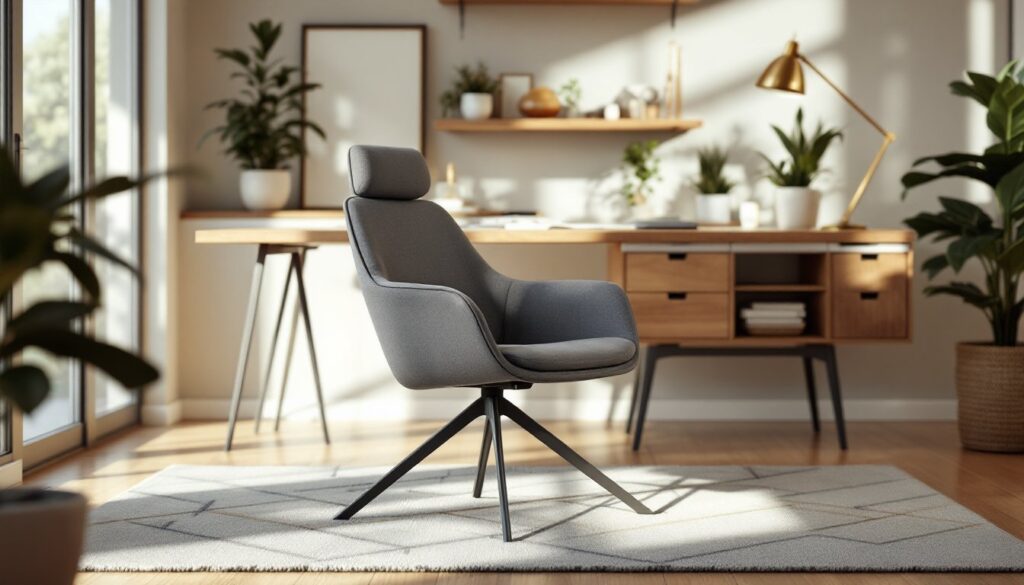
For the best home office setup, pair your desk with an ergonomic chair that supports your lower back. Look for adjustable seat height, lumbar support, and armrests: your feet should rest flat on the floor with knees at 90 degrees when seated. Budget seating typically ranges $150–$400 for solid everyday use: avoid rock-bottom options that collapse after six months.
Don’t overlook secondary storage. Filing cabinets, shelving units, or floating shelves keep papers and supplies off your desktop. A cluttered work surface drains focus faster than poor lighting. If your office space is tight, vertical storage saves floor space, install shelves above your desk or use a tall, narrow bookcase as a room divider. Solid construction matters here: particleboard shelving can sag under textbook or equipment weight. Opt for real wood or sturdy metal-frame systems that’ll last years of daily use.
Lighting for Focus and Eye Comfort
Overhead ceiling lights alone won’t cut it for a work from home office setup. They create glare on your monitor and cast shadows across your work surface. The ideal setup combines three layers: ambient (room) light, task light, and monitor backlight.
Start with a desk lamp that has a 40–60-watt equivalent LED bulb (roughly 400–600 lumens) positioned to your side, not directly behind or in front of your monitor. This angle minimizes glare while brightening your work surface. Color temperature matters too, look for 4000K to 5000K (neutral white) for daytime work: warmer tones (2700K) are better for evening hours if you’re working after dusk.
Monitor backlighting, strips of LED tape behind your screen, reduces eye strain by lowering contrast between your bright display and dark wall behind it. It’s a small addition with real impact on fatigue during 8-hour days. If you’re upgrading your best home office setup, this is a worthwhile $20–$40 investment. Avoid blue light entirely after 7 p.m. if you struggle with sleep: it signals your body to stay alert when you should be winding down.
Cable Management and Organization
Cable clutter isn’t just ugly, it makes your office feel chaotic and makes cleaning impossible. Start by running cables behind your desk using adhesive clips or cable trays before plugging anything in. Route power strips to the back corner of your desk, and use velcro cable ties (reusable, unlike plastic zip ties) to bundle cords.
Label every cable at both ends with painter’s tape or a label maker. When you need to swap equipment or troubleshoot, you won’t waste ten minutes tracing “which cable goes where.” Group cables by function, power, data, audio, so changes are logical. If your desk has a cable management grommet (the opening that runs through the desktop), feed major cables through it to hide them from view.
Consider a power strip with USB ports to reduce the number of plug adapters cluttering your desk. Outlets are never convenient: a strip with 4–6 ports and 2 USB slots handles most rigs. Surge protection is worth the extra $5, one power spike could fry your monitor or computer. Keep your workspace clean by designating a small bin for peripherals you rarely use: don’t leave three spare phone cables or old adapters scattered around.
Ergonomic Layout for Health and Productivity
Monitor placement makes or breaks long-term comfort in any office setup at home. Position your screen so the top of the display sits at or slightly below eye level when you’re sitting upright. Your arms should rest at 90 degrees when your hands are on the keyboard: if you’re reaching up or looking down at a tilted neck, you’ll develop strain injuries that linger for months.
The distance from your eyes to the screen should be 24–30 inches. Too close invites eye fatigue: too far and you’ll lean forward unconsciously, stressing your neck and shoulders. If you use a laptop, prop it on a stand and use an external keyboard and mouse: typing on a laptop keyboard forces your wrists and neck into unnatural positions. Resources like home office ergonomic guides provide visual references if you’re unsure.
Your desk surface should sit 28–30 inches high (standard height). If you’re short or tall, a height-adjustable desk is a game-changer, but it’s optional for most people. Footrests are underrated, if your feet dangle above the floor, a small footrest (even a book stack) takes pressure off your lower back. The investment in ergonomic positioning pays dividends: back pain and wrist issues derail productivity far more than a fancy standing desk ever will.
Personal Touches That Boost Motivation
A bland office saps motivation on gray days. Add one or two plants, they improve air quality and give your eyes a rest point from screen glare. A low-maintenance option like a pothos or snake plant tolerates office lighting and irregular watering. Avoid plants that drop leaves constantly: the distraction defeats the purpose.
Wall color sets the tone without costing much. Neutral tones (soft whites, grays, warm beiges) reduce visual fatigue and let your work take center stage. If you want color, a single accent wall in a muted blue or green is calming without being distracting. A fresh coat of paint runs $100–$200 in materials and a weekend of your time: it transforms the space far more than furniture rearrangement.
Personal items, a framed photo, a meaningful object, or a small rug, humanize the space and remind you why you’re working. Keep it minimal though: too many decorations become mental clutter. If inspiration matters to you, a single piece of art or a small shelf with meaningful items works better than a gallery wall. The goal is a space that feels like yours, not a sterile conference room.
Technology Essentials for Seamless Work
Your monitor is critical, a second display or an ultrawide (34+ inches) isn’t luxury, it’s productivity multiplier. Video calls on one screen while referencing documents on another eliminates constant window switching. If budget’s tight, start with one good 27-inch 1440p monitor: it’s sharper than 1080p and takes less desk space than two 24-inch displays side by side.
A quality webcam and microphone matter if you’re on calls daily. Built-in laptop cameras and mics are serviceable but grainy: a $50–$100 standalone webcam (1080p minimum) and a USB condenser mic make you look and sound professional. Resources on home automation and smart office tech cover connected devices that streamline your workflow, from smart lighting to voice assistants.
A wireless keyboard and mouse give you flexibility and reduce cable mess. Mechanical keyboards are popular with some folks but generate noise on calls: chiclet-style keys are quieter if you’re on frequent video meetings. Keep your router near your desk or use a mesh Wi-Fi system if your home office is far from it: weak signal ruins call quality and slows file transfers. Test your setup before your first big meeting, nothing’s worse than technical hiccups when clients are watching.
Conclusion
A functional home office setup isn’t about perfection, it’s about removing friction so you can focus on actual work. Start with ergonomics and lighting, add storage that fits your workflow, then personalize from there. Most spaces improve dramatically with $500–$800 and a weekend of setup: don’t feel pressured to spend thousands. Test your layout for two weeks, adjust what doesn’t work, then refine. The best office is the one you’ll actually use without pain or distraction.