A home office monitor setup isn’t just about plugging in a screen and calling it done. The right configuration directly impacts productivity, eye strain, and overall work comfort, especially if you’re spending eight hours a day staring at that display. Whether you’re upgrading from a laptop screen or building a multi-monitor workspace from scratch, monitor placement matters more than most people realize. This guide walks through choosing the right monitor, positioning it correctly, and managing lighting to create a workspace that actually works for you.
Table of Contents
ToggleKey Takeaways
- A home office monitor setup should position the screen 20–26 inches away at or slightly below eye level to reduce neck pain, eye strain, and headaches caused by improper placement.
- Choose a 24-inch to 27-inch monitor with 1080p or 1440p resolution for standard office work, with IPS or VA panels prioritized over TN for better color accuracy and viewing angles.
- Proper monitor positioning with a monitor arm or stand riser—tilted just 10–15 degrees back—prevents hunching and allows your eyes to naturally gaze slightly downward for maximum comfort.
- Manage glare by positioning your monitor perpendicular to windows, installing soft diffuse lighting instead of harsh overhead fixtures, and using warm-white desk lamps positioned to the side and behind the screen.
- Multi-monitor setups should keep your primary monitor directly in front of you with secondary screens angled outward so you never need to twist your head more than 30 degrees.
- Invest in resolution, color accuracy, and a quality monitor stand rather than high refresh rates, since 60 Hz is sufficient for typical home office tasks like email, documents, and video calls.
Why Monitor Placement Matters for Remote Work Success
Poor monitor placement is one of the biggest contributors to neck pain, eye fatigue, and headaches in home office workers. When a screen sits too low, too high, or too far away, your eyes and neck compensate by straining in unnatural positions. Over weeks and months, that strain compounds.
Optimal monitor setup reduces eye strain because your eyes naturally gaze slightly downward when relaxed, not straight ahead or upward. Proper distance means your eyes work less hard to focus. The right height prevents hunching or tilting your head backward. All of this translates to fewer headaches, better posture, and the ability to work longer without discomfort.
Beyond ergonomics, monitor placement affects productivity. A properly positioned screen reduces visual distractions and lets you focus on work. Glare and reflections break concentration and force you to angle your head awkwardly to see content clearly. The goal isn’t perfect, magazine-shoot aesthetics, it’s a functional setup that keeps you healthy and focused.
Choosing the Right Monitor for Your Home Office
Size and Resolution Considerations
Monitor size and resolution work together to determine screen real estate and image sharpness. For most home office work, email, documents, spreadsheets, video calls, a 24-inch to 27-inch 1080p or 1440p monitor is the practical sweet spot. A 24-inch 1080p screen gives you about 92 pixels per inch (PPI), which is readable but not as sharp as higher resolutions. A 27-inch 1440p (2560 × 1440) monitor delivers around 109 PPI and noticeably crisper text and images.
If you work with design software, video editing, or detailed spreadsheets, a 27-inch or 32-inch 1440p or 4K (3840 × 2160) monitor is worth the investment. Larger screens reduce squinting and let you see more content at once. But, 4K monitors require more graphics processing power and can make interface text too small unless you scale it properly in Windows or macOS.
Panel Type and Refresh Rate
Three main panel types exist: IPS, VA, and TN. IPS panels offer the best color accuracy and viewing angles, ideal if color grading or design work matters. VA panels have higher contrast and deeper blacks, suiting creative work and gaming. TN panels are cheapest and fastest but have narrow viewing angles and less accurate color.
For home office work, IPS or VA is the sensible choice. Refresh rate (how many times the screen refreshes per second) matters less in the office than in gaming. A standard 60 Hz refresh rate is fine for documents and browsing. Higher refresh rates (75 Hz, 144 Hz) don’t provide meaningful benefit for typical work tasks and just increase power consumption and cost. Focus your budget on resolution, color accuracy, and a quality stand instead.
Optimal Monitor Positioning and Ergonomics
Distance, Height, and Angle Setup
Monitor distance is the foundation of ergonomic setup. Sit normally in your chair with your arm extended forward, your fingertips should nearly touch the screen. That’s roughly 20 to 26 inches from your eyes, depending on monitor size and your vision. At this distance, your eyes relax and focus naturally without strain.
Height is equally critical. The top of your monitor should be at or slightly below eye level when you’re sitting upright. Ideally, your line of sight hits the screen about one-third down from the top. This encourages a slightly downward gaze, which is the most relaxed eye position. If your monitor is on a desk, it’ll likely sit too low. Use a monitor arm, stand riser, or adjustable desk to get the height right. Your neck should be neutral, not tilted up or down.
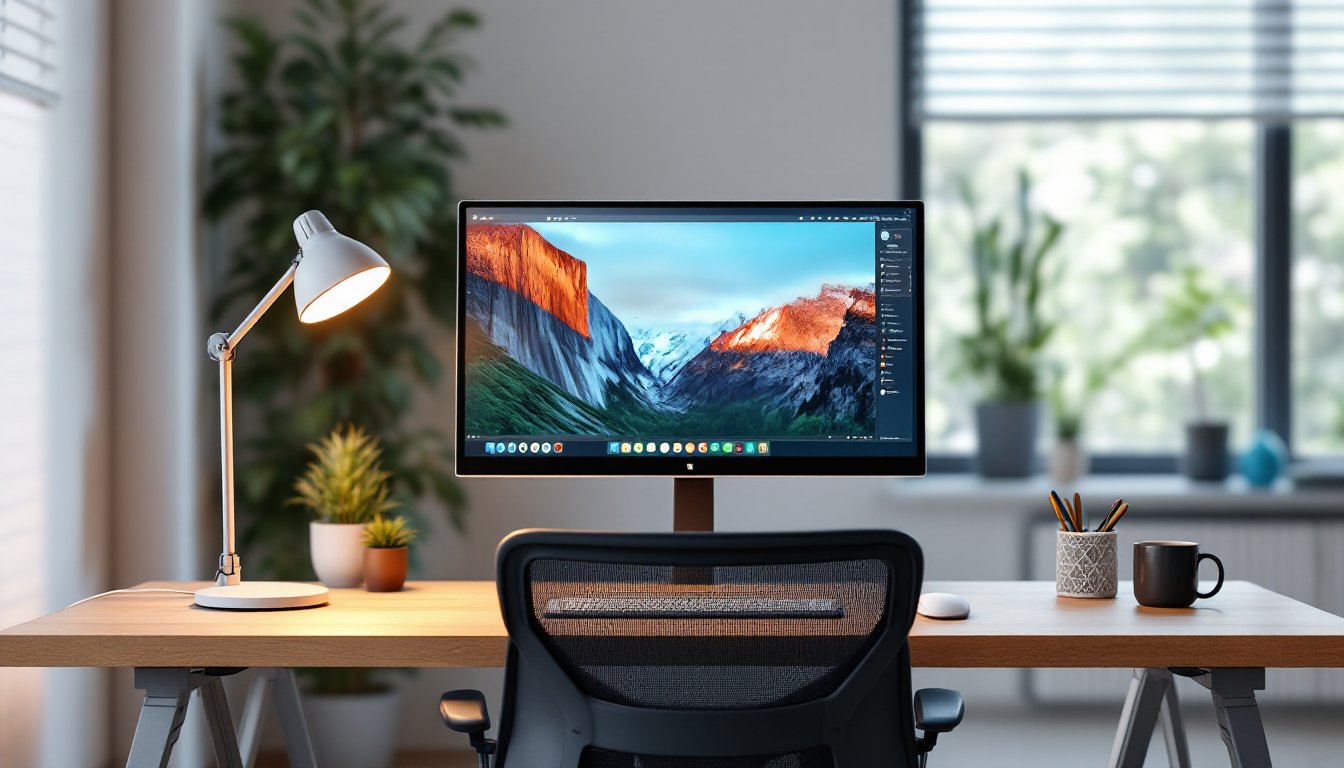
Angle (tilt) should be minimal, just 10 to 15 degrees back from vertical. This reduces glare and reflections bouncing into your eyes. If you’re using an adjustable monitor arm, you can fine-tune height and angle in seconds. Arms are especially useful if you work between multiple screens or need flexibility throughout the day.
For those building a multi-monitor setup, position the primary monitor directly in front of you at eye level and angle secondary monitors outward. Your head shouldn’t twist more than 30 degrees to see any screen. Proper monitor positioning saves your neck and shoulders from the cumulative strain that remote workers often develop.
Lighting and Glare Management
Lighting is where many home office setups fail. Direct sunlight or overhead lights reflecting off your monitor create glare, bright spots and reflections that force your eyes to work harder and cause squinting. Glare is especially problematic on glossy screens.
Start by identifying light sources: windows, ceiling lights, and desk lamps. Position your monitor perpendicular to windows if possible, so natural light hits it at an angle rather than straight-on. If your monitor faces a bright window, you’re fighting a losing battle, reposition your desk or close blinds during peak sunlight hours.
Overhead ceiling lights often reflect directly onto screens. Install diffuse lighting (soft, indirect light) instead of harsh overhead fixtures. A good desk lamp with a warm-white bulb (2700K to 3000K color temperature) reduces eye strain better than blue-tinted office lighting. Position your desk lamp to the side and slightly behind your monitor so it illuminates your work surface without hitting the screen.
If glare persists, consider a matte screen protector or monitor hood, both reduce reflections without significant image quality loss. Anti-glare screen protectors are cheap and effective for side-by-side comparisons with competitors’ products. Many modern monitors have anti-glare coatings built in, so check your monitor’s specs before buying add-ons.
For broader inspiration on creating a functional workspace environment, Houzz offers design guidance for home office setups that balance aesthetics with ergonomics. Also, smart home lighting systems can automate brightness and color temperature throughout the day, adapting to your circadian rhythm and reducing eye strain during extended work sessions.